Free PNG Converter
or drop it here
Learn about Canva’s upload formats and requirements. See how we use your content in our Privacy Policy.
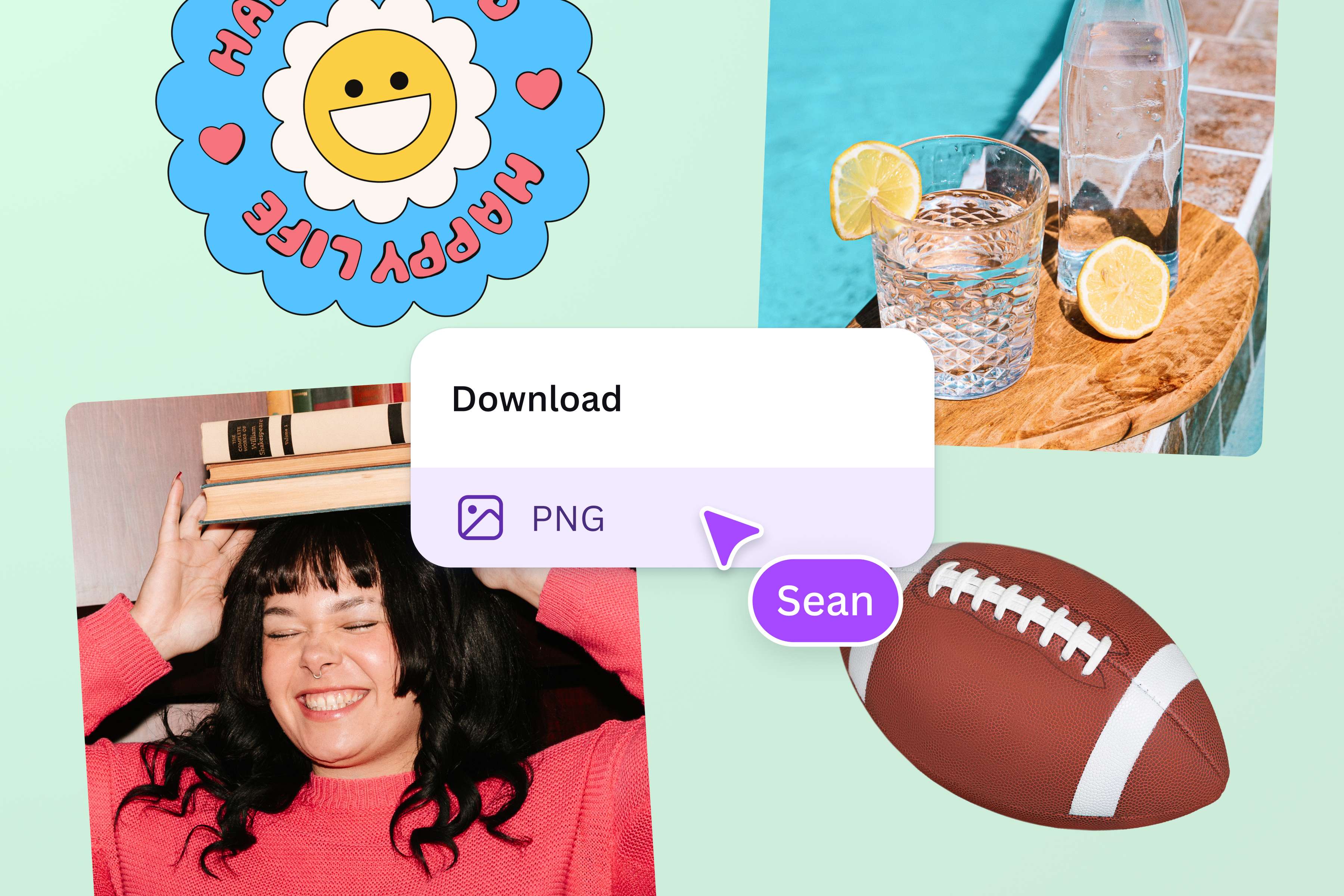
Quick and easy PNG conversion
Design projects require visuals that look sharp, regardless of how much you zoom in on them. That means images saved in PNG format. Run your files through Canva’s online PNG converter so they’re stored with lossless compression.
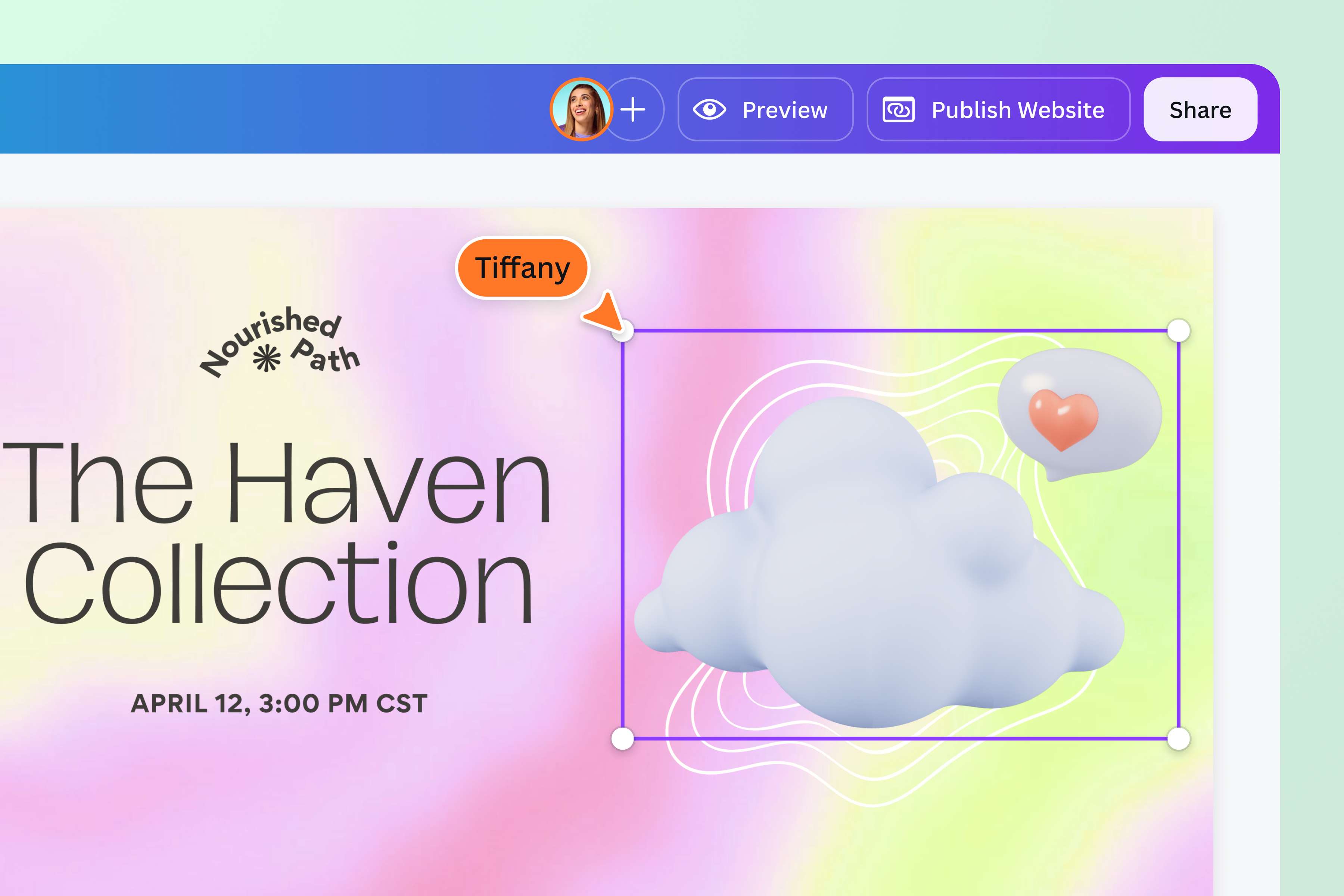
Boost your branding
Building a website? Convert existing brand elements into PNGs for crisp and clear web design. Need transparent logos, icons, and graphics you can work into social media posts, labels, or packaging? Open Canva’s editor after converting your file and remove the background to create transparent PNGs in just a few clicks.
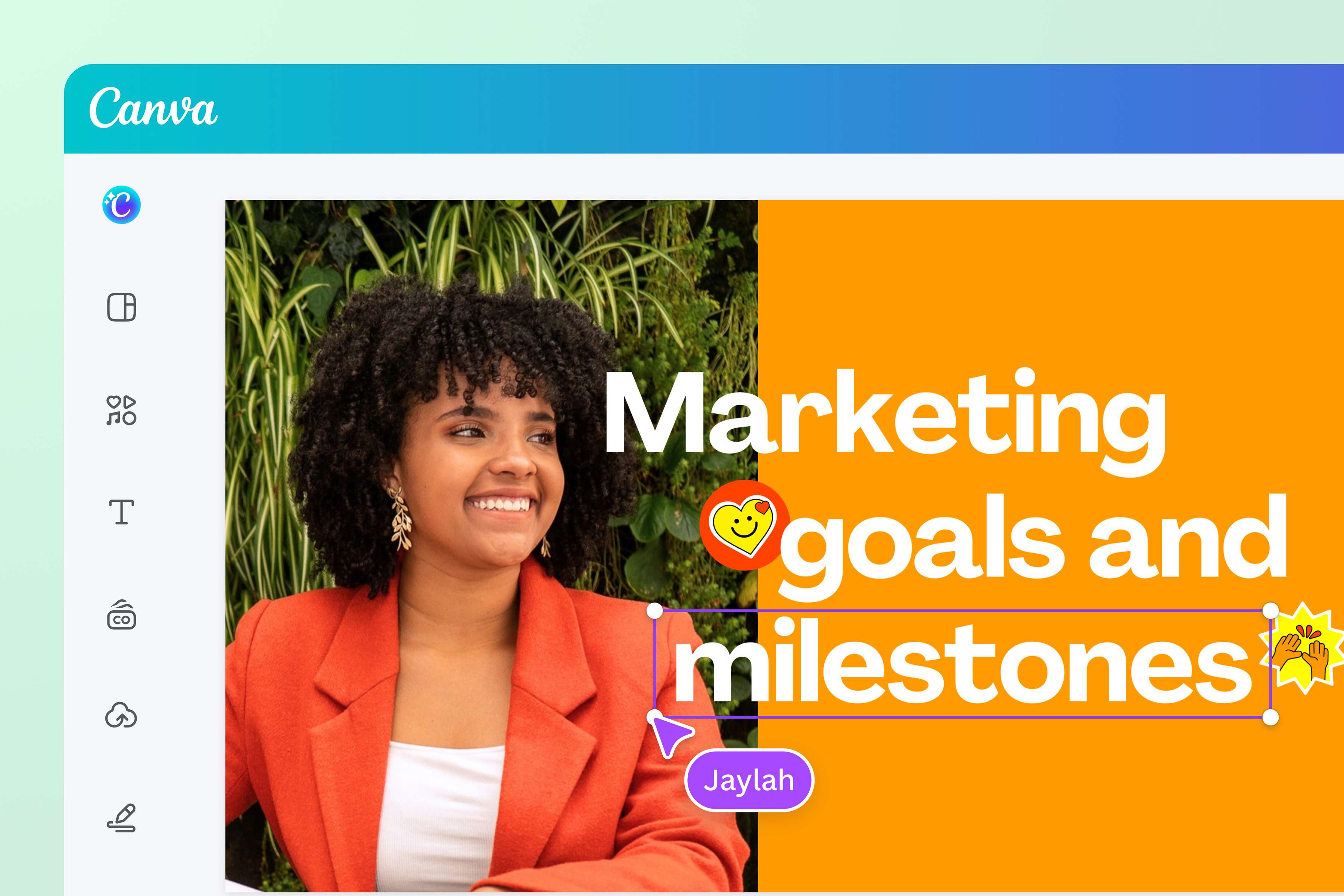
Keep fonts and colors as sharp as your images
Great presentations aren’t built on images alone. Make sure the fonts and line art have clear edges and the colors look rich, too. PNG’s transparency support and high color depth make it the best format for designs that will be printed on a large scale. Transform completed design files with our online PNG converter before sending them off to the printer.
Edit and re-edit files without compromising their quality
Get to work on design revisions without losing clarity in your graphics. With our free PNG converter, you can download and archive files with their quality intact. Open, re-open, and rework visuals without worry. Convert them to other required formats, too, with our online image converter.
How to convert to PNG
Upload your image file
Select “Upload your file” or drag and drop your JPEG, HEIC/HEIF, or WebP image right on the page, with files up to 50MB supported.Sign in to your Canva account
Log in to your Canva account or sign up for one to begin your file conversion.Convert your image to PNG
Let Canva's online converter turn your image into a PNG, with no desktop software to install. It may take a few moments, and Canva lets you know when it's ready.Download or share your PNG
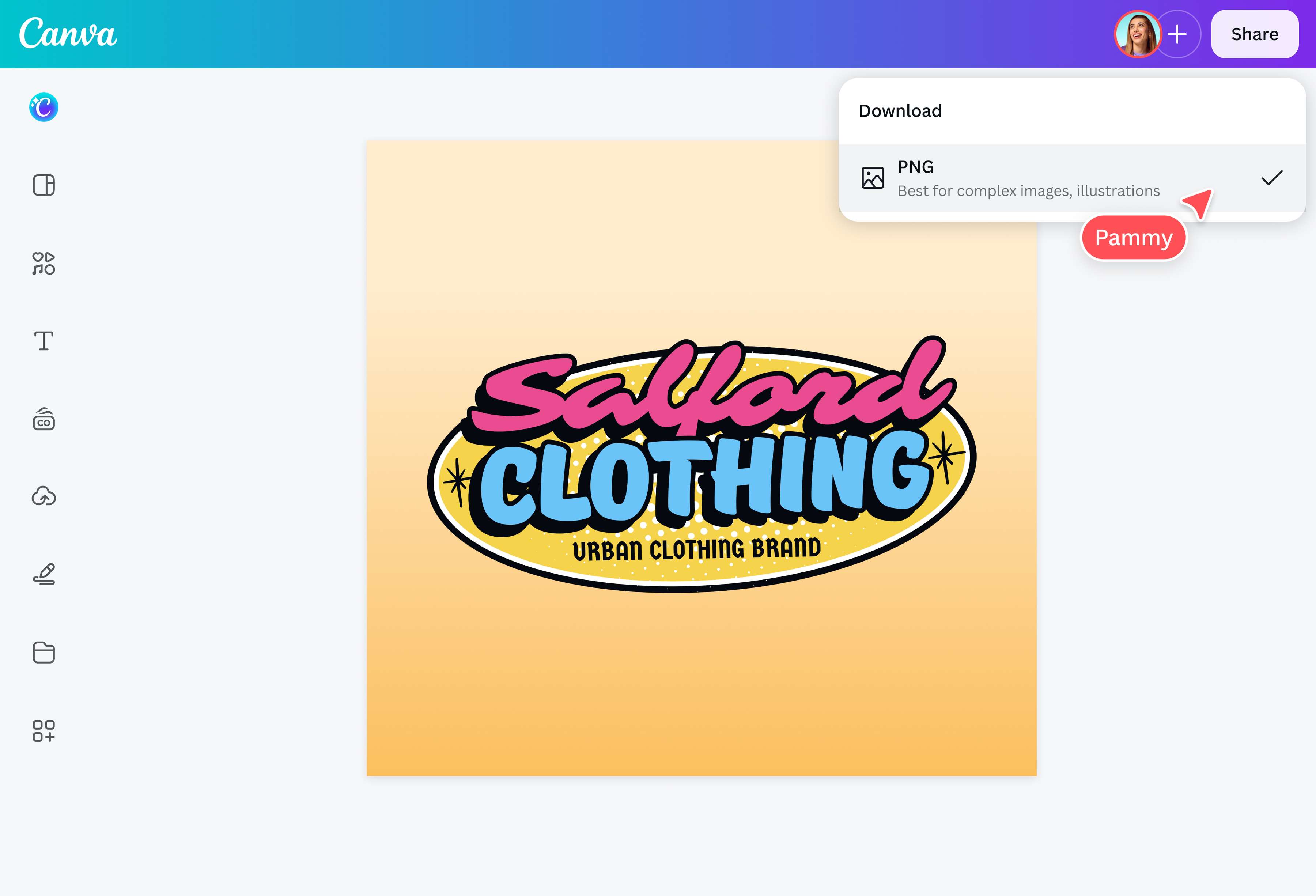
Click “Download” to save the converted file to your device. You can also select “Share” to post it to your social channels or send it to other Canva users with a link.Keep editing on Canva’s editor
Want to refine your PNG first? Click “Edit” to open your file in Canva’s editor, where you can add your own text, graphics, or brand colors before downloading the finished version.
Frequently asked questions
- A PNG converter is a digital tool that lets users transform and save image files into PNG format. It is especially useful to photographers, graphic designers, web developers, content creators, and other creatives whose design and presentation projects require high-quality visuals. They need image files to be converted into PNG since this format supports transparent backgrounds and high-quality compression without losing details.